

iPhone App Crashes: There are few things more frustrating in the digital age than an app that just won’t cooperate. You’re in the middle of drafting an important email, about to beat a high score, or scrolling through your feed, and suddenly—poof—the app vanishes, and you’re staring at your home screen.
If you’re asking yourself, “Why do my apps keep crashing on iPhone?” you are not alone. App instability is one of the most common iOS issues users face, but the good news is that it’s almost always fixable without a trip to the Apple Store.
In this guide, we’ll dive deep into why iPhone apps crash, how to troubleshoot the problem step-by-step, and how to prevent it from happening again.
What Does “App Crash” Mean on iPhone?
An iPhone app crashes happens when an application stops working unexpectedly and closes automatically. You might notice:
- App freezes on loading screen
- Screen turns black
- App sends you back to Home screen
- Touch not responding
Why Do iPhone App Crashes?
There isn’t just one reason. Multiple factors can cause apps to crash.
1. Outdated iOS Version
If your iPhone is running an older iOS version, new apps may not work properly. Developers optimize apps for the latest iOS version.
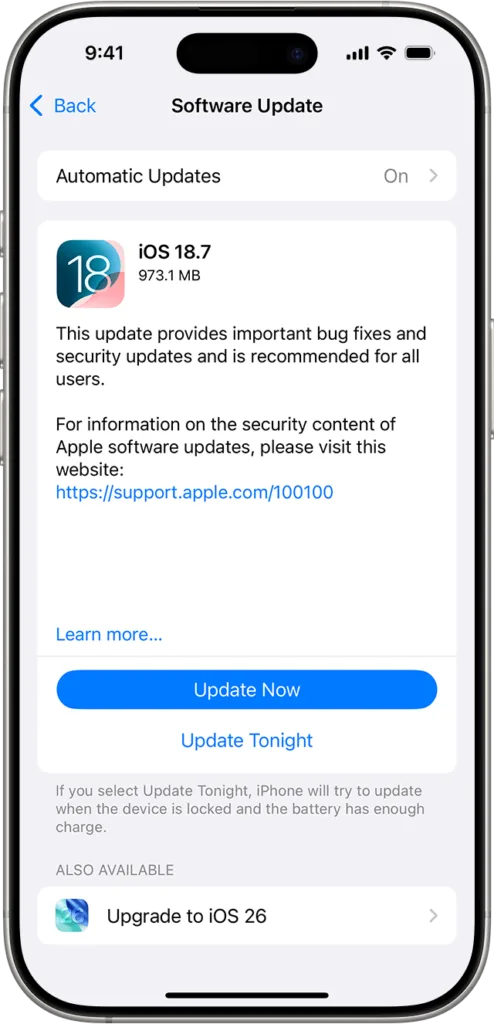
How to Fix:
- Open Settings
- Tap General
- Select Software Update
- Install the latest version if available
Keeping your iPhone updated improves stability and security.
2. App Needs an Update
Apps regularly receive bug fixes and performance improvements. If you skip updates, crashes may increase.
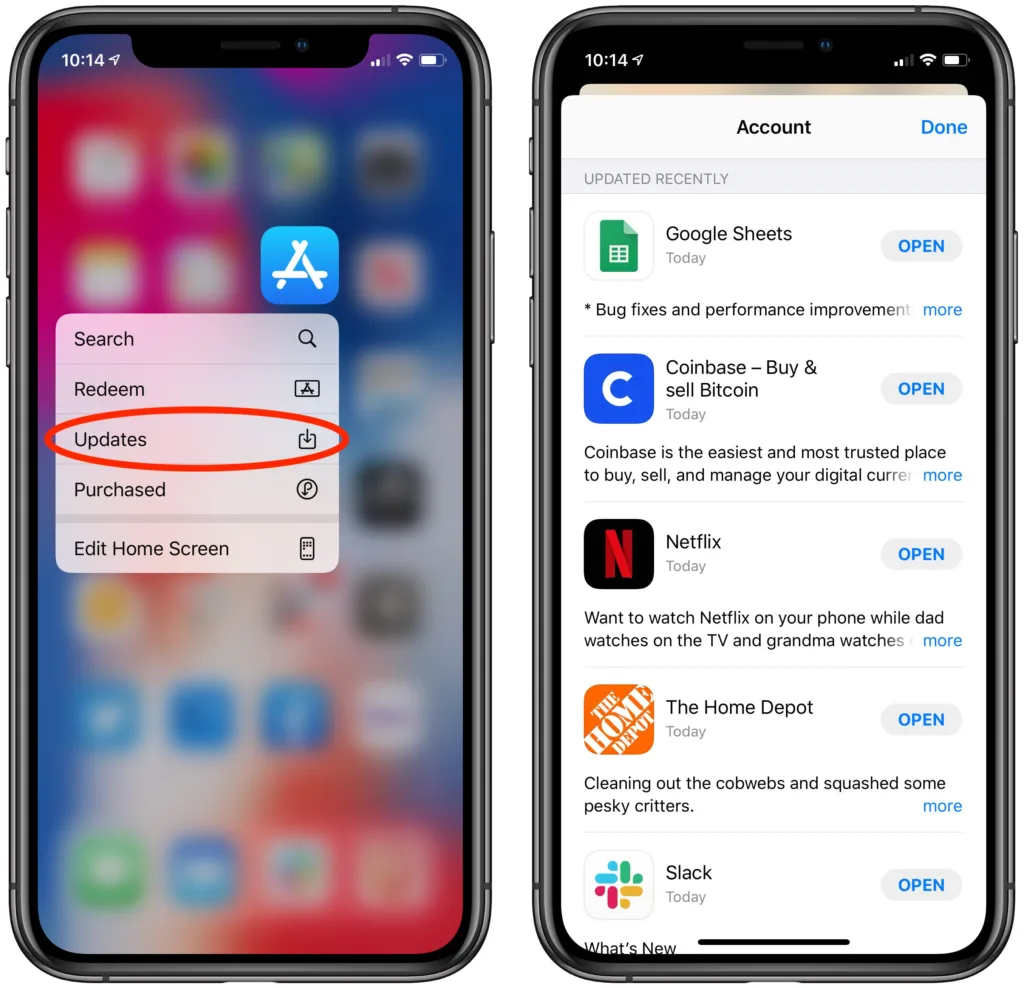
Solution:
- Open App Store
- Tap your profile icon
- Select Update All
3. Low Storage Space
If your storage is almost full, apps may not function properly.
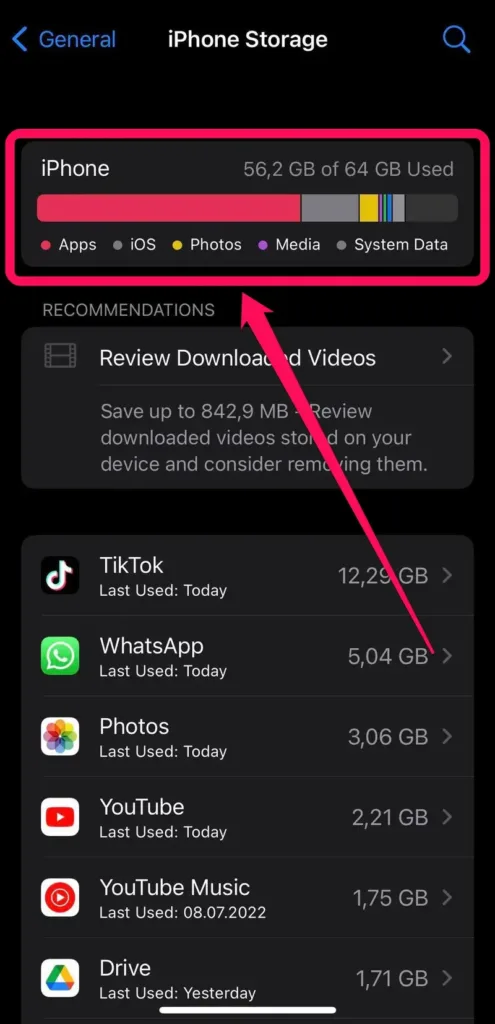
Check Storage:
- Go to Settings
- Tap General
- Select iPhone Storage
💡 Keep at least 5–10 GB free for smooth performance.
Delete:
- Unused apps
- Large videos
- Duplicate photos
4. Too Many Background Apps
Running too many apps at once consumes memory (RAM).
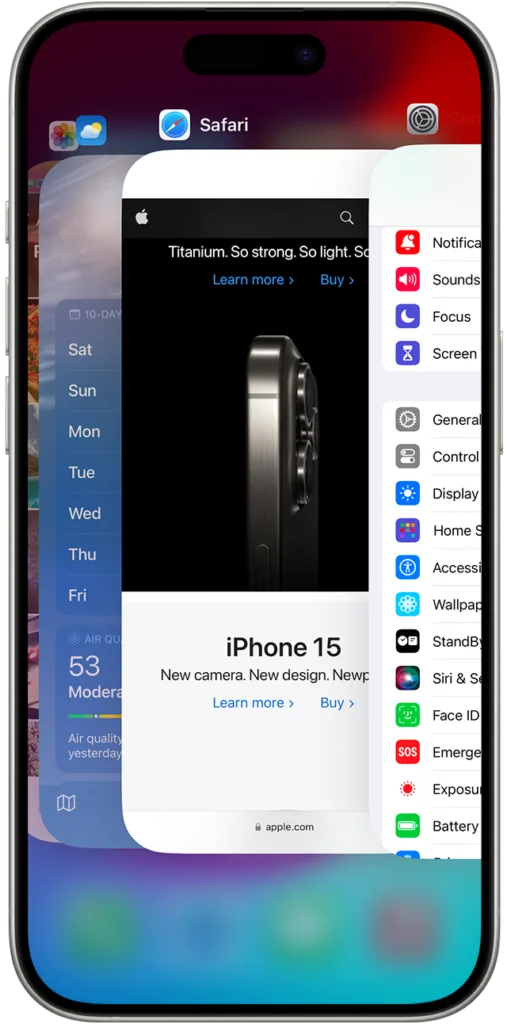
Fix:
- Swipe up from bottom (or double-press Home button)
- Close unused apps
This refreshes memory and improves performance.
5. Corrupted App Data
Sometimes app files get corrupted during download or update.
Solution:
- Delete the app
- Restart your iPhone
- Reinstall the app
This often fixes crash issues instantly.
6. Internet Connection Problems
Many apps depend on stable internet. Poor WiFi or mobile data can cause freezing or crashes.
Try:
- Switching between WiFi and mobile data
- Restarting router
- Turning Airplane mode on and off
Step-by-Step Fix: How to Stop iPhone Apps from Crashing
Follow these proven troubleshooting methods:
✅ Restart Your iPhone
A simple restart clears temporary glitches.
- Press and hold Power + Volume button
- Slide to power off
- Turn it back on after 30 seconds
✅ Force Restart (For iPhone 8 and Later)
- Press Volume Up
- Press Volume Down
- Hold Side button until Apple logo appears
This method fixes system-level bugs.
✅ Reset All Settings (No Data Loss)
If crashes continue:
- Go to Settings
- Tap General
- Select Transfer or Reset iPhone
- Tap Reset
- Choose Reset All Settings
⚠ This will not delete photos or apps but removes saved WiFi passwords.
✅ Factory Reset (Last Option)
Only if nothing works.
- Backup your data
- Go to Settings > General > Reset
- Tap Erase All Content and Settings
Use this option carefully.
Also read: How to Choose the Right Software for Your Needs in 2026 – A Complete Beginner’s Guide
How to Prevent App Crashes in Future
Follow these best practices:
✔ Keep iOS updated
✔ Update apps regularly
✔ Maintain free storage
✔ Avoid installing unknown apps
✔ Restart your iPhone weekly
✔ Use stable internet
Preventive maintenance keeps your device smooth.
When Should You Contact Apple Support?
Consider professional help if:
- Apps crash immediately after opening
- iPhone overheats
- Device is extremely slow
- Issue continues after reset
In such cases, contact official Apple Support or visit an authorized service center.
Final Conclusion
iPhone app crashes are common but usually easy to fix. Most issues happen due to outdated software, low storage, or temporary glitches.
By following the steps above, you can fix the problem and prevent future crashes. Keeping your device updated and optimized ensures smooth performance.
If this guide helped you, consider sharing it with others facing similar issues.