
If you are looking to transform your creative designs into tangible masterpieces, Easy Cut Studio 2026 stands as the industry benchmark. Whether you are a hobbyist creating custom decals at home or a professional running a high-volume sign shop, this software provides the bridge between your imagination and your vinyl cutter.
In this comprehensive guide, we’ll dive deep into why Easy Cut Studio 2026 is considered the best software in its class, its standout features, and how you can get started today.
Overview: What is Easy Cut Studio 2026?
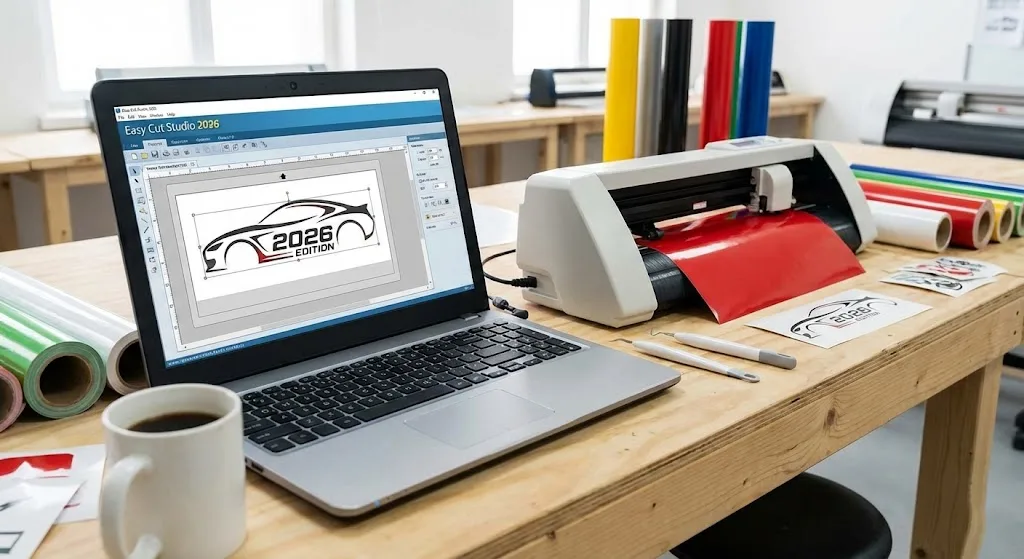
Easy Cut Studio 2026 is a powerhouse sign-making and vinyl-cutting software designed to work seamlessly with both Windows and macOS. Unlike many proprietary programs that lock you into a single brand of hardware, Easy Cut Studio is “hardware agnostic,” meaning it supports over 800 different vinyl cutters and plotters, including popular brands like Roland, Graphtec, Vevor, GCC, and Mycut.
The 2026 version introduces enhanced 64-bit architecture, native support for Apple Silicon (M1/M2/M3), and a refined user interface that simplifies the most complex “print and cut” workflows.
Also read: Nitro PDF Pro Enterprise 2025
Standout Features of Easy Cut Studio 2026
1. Advanced Image Tracing & Vectorization
Don’t have a vector file? No problem. The built-in Auto-Trace tool can take raster images (JPG, PNG, BMP) and instantly convert them into cuttable vector paths.
2. Precise Contour Cutting (Print and Cut)
Create professional-grade stickers and decals. The software automatically adds registration marks to your design, allowing your cutter’s optical eye to align perfectly for a precise cut around your printed graphics.
3. Rhinestone Template Creation
Turn any shape or text into a rhinestone pattern. You can customize the stone size and spacing, making it the go-to tool for custom apparel designers.
4. Welding and Boolean Operations
Combine overlapping shapes into a single, seamless cut path. This is essential for script fonts and complex overlapping graphics to prevent the blade from cutting through the middle of your design.
5. Massive Shape Library
Includes over 350 pre-made shapes, giving you a head start on logos, icons, and decorative elements without needing external design software.
Technical Setup Details
Setting up Easy Cut Studio 2026 is straightforward. Once installed, the primary setup involves connecting your hardware:
- Connection Types: Supports USB, Serial (COM), Parallel (LPT), and modern Wireless (Wi-Fi/Bluetooth) connections.
- Driver Installation: Most modern cutters are plug-and-play, but the software includes a dedicated “Driver Manager” to ensure your PC communicates perfectly with your plotter.
- Activation: Uses a simple serial key system. One license allows for permanent use with free lifetime technical support.
System Requirements
To ensure smooth performance, especially when handling high-node vector files, your system should meet the following:
| Feature | Windows Requirement | macOS Requirement |
| OS | Windows 11, 10, 8, or 7 (64-bit) | macOS 10.12 or higher (Including macOS 26 Tahoe) |
| Processor | Intel Pentium or better | Intel or Apple Silicon (M1/M2/M3) |
| RAM | 2 GB (4 GB Recommended) | 2 GB (4 GB Recommended) |
| Hard Disk | 100 MB for installation | 100 MB for installation |
| Ports | USB 1.1, 2.0, or 3.0 | USB or Wireless |
How to Use Easy Cut Studio 2026: A Step-by-Step Guide
Getting from a blank screen to a finished cut is easier than ever. Follow these steps:
Step 1: Create or Import Your Design
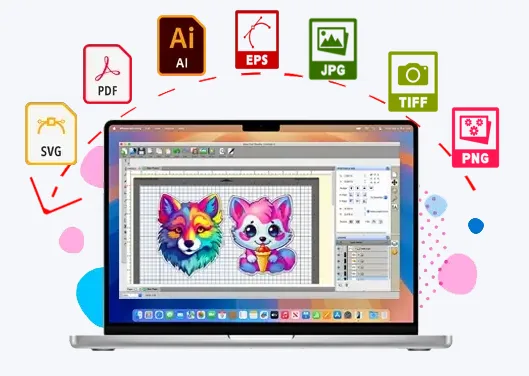
Open a new project or import an existing file. Easy Cut Studio supports SVG, PDF, AI, EPS, and PNG. You can also use the Text Tool to access every font already installed on your computer.
Step 2: Arrange and Edit
Use the Layer Manager to organize your design. If you have overlapping letters, select them and click Weld to join them. Use the “Shadow” effect if you want a thick border around your design for easier weeding.
Step 3: Configure Your Cutter
Go to the Cutter Menu and select My Cutter > Manage Cutters. Choose your brand and model. Ensure your plotter is set to “Online” mode.
Step 4: The Cut Settings
Click the Cut icon. Here, you can adjust:
- Pressure & Speed: Vital for different materials like HTV (Heat Transfer Vinyl) or heavy-duty cardstock.
- Blade Offset: Ensures corners are sharp and not rounded.
- Multi-Cut: Useful for thicker materials that require two passes.
Step 5: Weed and Apply
Once the machine finishes, remove the excess vinyl (weeding). Use transfer tape to lift your design and apply it to your surface!
Why Easy Cut Studio is the Best Software in 2026
While there are many options on the market, Easy Cut Studio 2026 wins on Versatility and User Experience.
- Universal Compatibility: You aren’t tied to one brand. If you upgrade your cutter, you don’t have to learn new software.
- One-Time Payment: Unlike Adobe or other subscription-based models, Easy Cut Studio offers a lifetime license. No monthly fees.
- Native Performance: Optimized for the latest operating systems, ensuring zero lag even when working with complex, multi-layered signs.
Conclusion
Easy Cut Studio 2026 is more than just a cutting utility; it is a complete design-to-production ecosystem. Its ability to handle everything from basic vinyl lettering to complex rhinestone templates and contour-cut stickers makes it an indispensable tool for any creator.