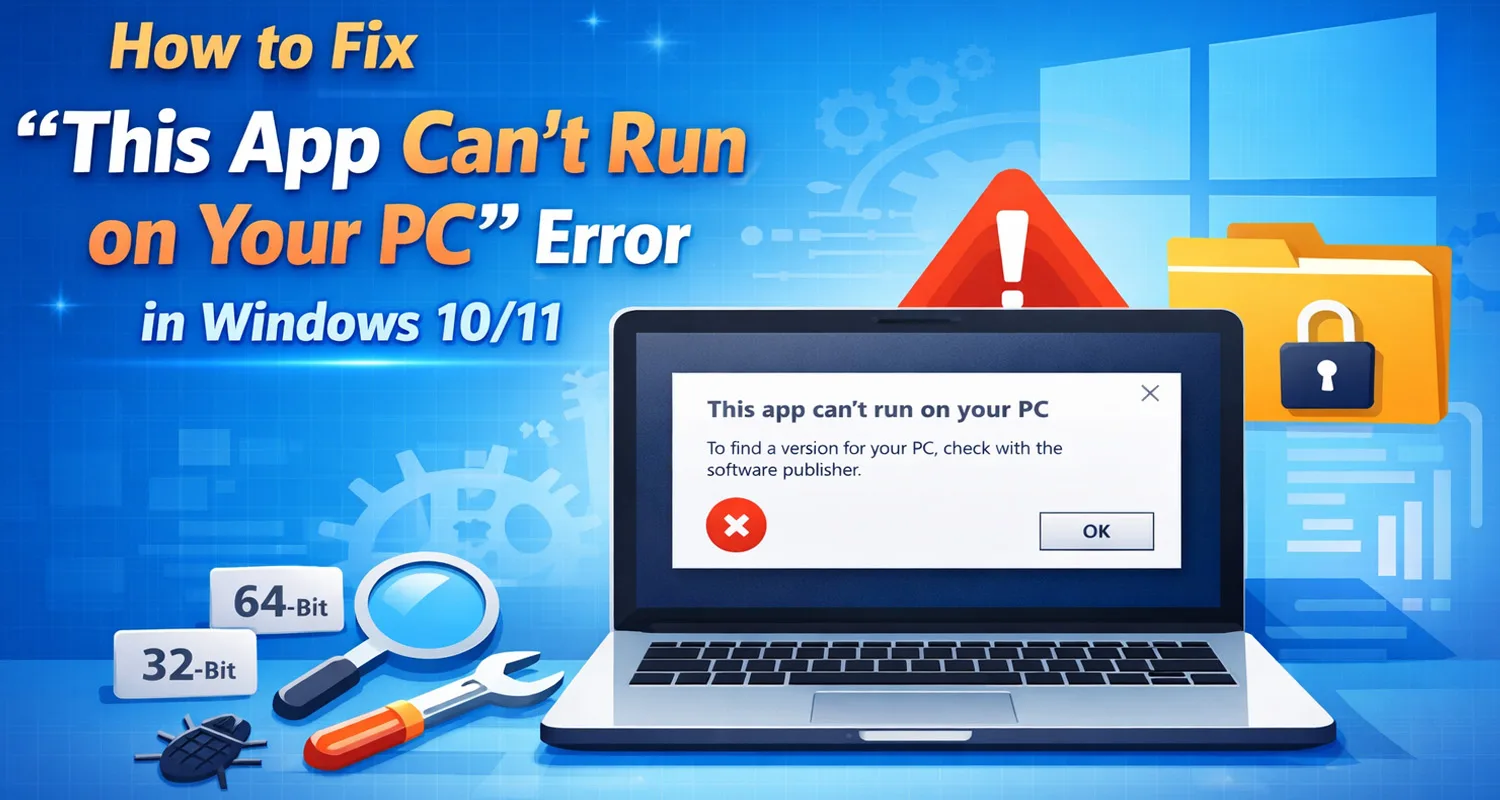

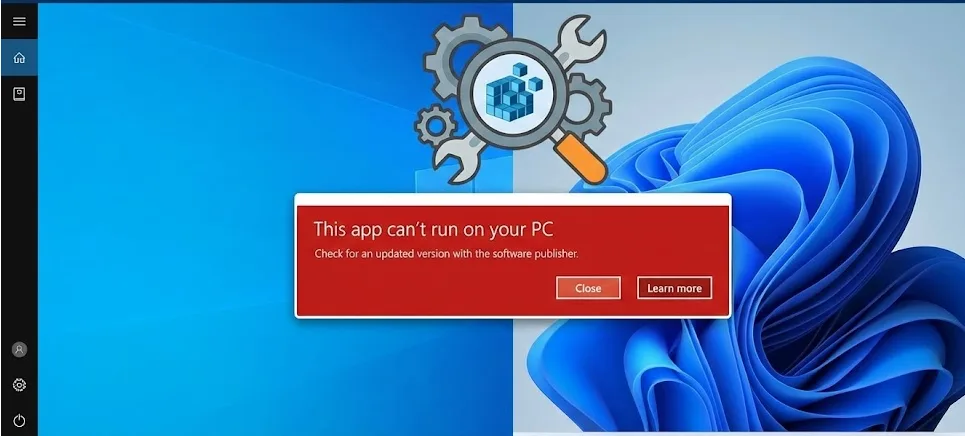
If you are seeing the “This app can not run on your PC” error while trying to open a program in Windows 10 or Windows 11, don’t worry — you’re not alone. This common Windows error usually appears when you try to install incompatible software, use a corrupted file, or run an app that doesn’t match your system architecture.
This issue can prevent important software from opening and may affect your work, gaming, or daily tasks. The good news is that in most cases, this problem is easy to fix with a few simple troubleshooting steps. In this step-by-step guide, we will explain why this error happens and show you practical solutions that actually work.
In this step-by-step guide, we will explain why this error happens and how you can fix it quickly using simple and advanced methods.
Why Does “This App Can not Run on Your PC” Error Appear?
This error usually happens due to the following reasons:
- You downloaded the wrong version (32-bit vs 64-bit)
- The file is corrupted
- Windows Defender blocked the app
- Outdated Windows version
- Damaged system files
- Missing administrator permissions
✅ Method 1: Check Your System Type (32-bit or 64-bit)
One of the most common reasons for this error is installing the wrong version of the software.
Steps:
- Press Windows + I
- Go to System
- Click About
- Check “System Type”
If your PC is 64-bit, download the 64-bit version of the software.
👉 Make sure you always download software from trusted sources like official websites or reliable platforms.
✅ Method 2: Run the App as Administrator
Sometimes Windows blocks apps due to permission restrictions.
Steps:
- Right-click the app file
- Click Run as Administrator
- Click Yes when prompted
If the app opens, the issue was permission-related.
Also read : Clair Obscur: Expedition 33 Delux Edition – Download PC Game
✅ Method 3: Enable Developer Mode (For Third-Party Apps)
If you’re installing non-Microsoft Store apps:
- Press Windows + I
- Go to Privacy & Security
- Click For Developers
- Turn ON Developer Mode
Restart your PC and try again.
✅ Method 4: Disable Windows Defender SmartScreen
Windows security may block unknown apps.
Steps:
- Open Windows Security
- Click App & Browser Control
- Click Reputation-Based Protection Settings
- Turn off Check Apps and Files
⚠️ Turn it back ON after installing trusted apps.
✅ Method 5: Re-download the App File
The downloaded file may be corrupted.
- Delete the old file
- Clear browser cache
- Download again from official website
Avoid cracked or modified software files, as they often trigger this error.
✅ Method 6: Run SFC Scan (Advanced Fix)
If system files are corrupted, use System File Checker.
Steps:
- Search Command Prompt
- Right-click → Run as Administrator
- Type:
sfc /scannow
- Press Enter
- Wait for the scan to complete
- Restart PC
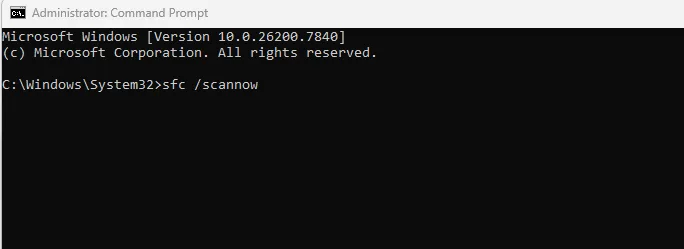
This will repair corrupted Windows system files.
✅ Method 7: Update Windows
Outdated Windows versions may cause compatibility issues.
Steps:
- Press Windows + I
- Go to Windows Update
- Click Check for Updates
- Install available updates
Restart your computer.
Also read : How to Choose the Right Software for Your Needs in 2026 – A Complete Beginner’s Guide
Extra Tips to Avoid This Error in Future
✔ Always check system compatibility
✔ Avoid downloading from unsafe websites
✔ Keep Windows updated
✔ Use trusted antivirus software
✔ Don’t use outdated software versions
Frequently Asked Questions (FAQ)
Q1: Why does this app can not run on your PC appear in Windows 11?
It usually appears due to compatibility issues, corrupted files, or security restrictions.
Q2: Can virus cause this error?
Yes, malware infections can block applications from running.
Q3: Is it safe to disable Windows Defender?
Only temporarily and only for trusted apps. Always enable it again after installation.
Conclusion
The “This app can not run on your PC” error is mainly caused by compatibility or permission issues. By checking your system type, running the app as administrator, updating Windows, or repairing system files, you can easily fix this issue.
If the problem still continues, consider reinstalling Windows or checking for hardware-related problems.