Imagine if your email inbox were a physical office where you had to spend your entire workday. By the end of it, you would likely feel exhausted, overwhelmed, and mentally scattered. One moment you’re responding to an upset customer whose order arrived late. The next, you’re replying to an unexpected sales inquiry. Shortly after that, you’re preparing for an urgent internal meeting that requires careful wording and a sensitive presentation. Each task demands a different mindset, tone, and level of focus—often within minutes of each other.
Fortunately, this chaos exists in a digital space rather than a real office. Still, every new email forces your brain to quickly shift gears. You move from problem-solving to persuasion to collaboration without any real break. Psychologists describe this mental strain as context switching—the cognitive effort required to jump between unrelated tasks. Research consistently shows that frequent context switching reduces efficiency, increases stress, and creates the frustrating sense that you’re always behind, no matter how hard you work.
While not every profession relies equally on email, many professionals receive well over 100 messages a day and spend 10 to 12 hours each week simply managing their inbox. Under constant pressure to respond quickly, emails often become rushed, defensive, unclear, or overly brief. Ironically, these poorly framed replies usually create more work, triggering follow-up questions and extended email threads that consume even more time.
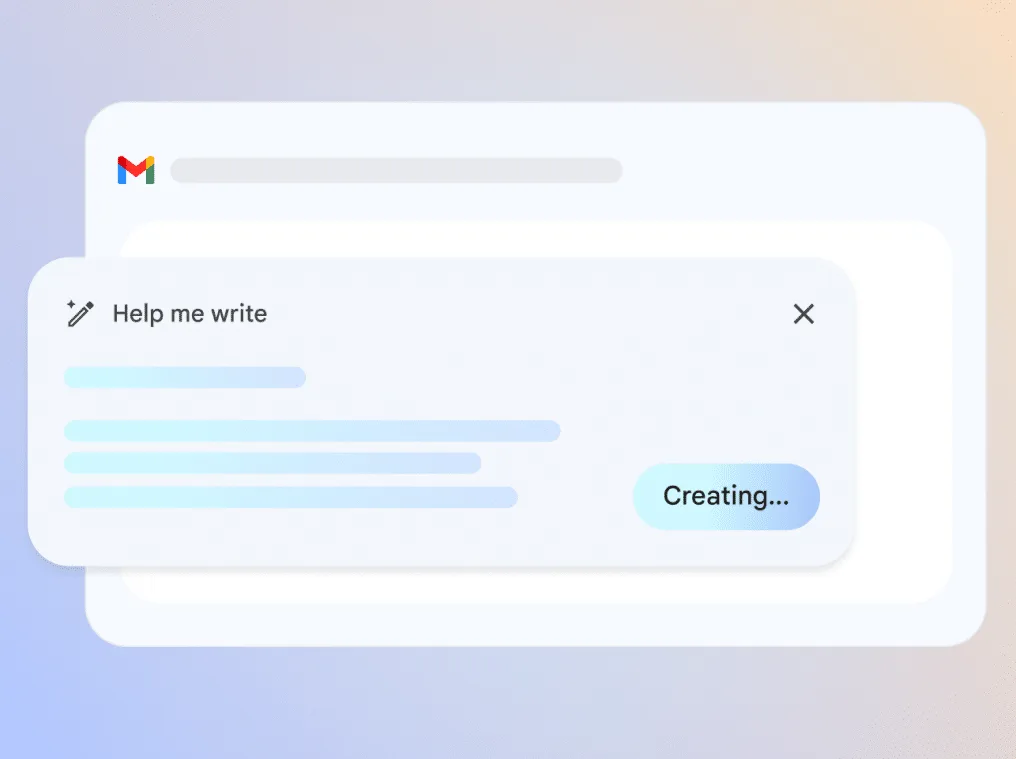
This is where it helps to pause and rethink how we approach email altogether. Google’s Gemini in Gmail offers a feature called “Help me write,” designed to take the burden off your shoulders by generating well-structured draft responses. Instead of starting from a blank screen, you can focus on refining ideas, making decisions, and handling higher-value work that actually moves your goals forward.
In this article, we’ll explore seven practical prompts you can use with “Help me write” to handle customer complaints more effectively, speed up sales conversations, and simplify internal communication. The goal is simple: help you get through your workday with clarity, confidence, and far less time trapped inside your inbox—thankfully, still a virtual one.
So, what is Gmail’s “Help me write,” and how can Gemini enhance your email drafts?
Gemini is Google’s next-generation AI designed for advanced text generation, and “Help me write” is a smart drafting tool built directly into Gmail that uses Gemini’s capabilities to simplify email writing (with sincere apologies to Outlook users).
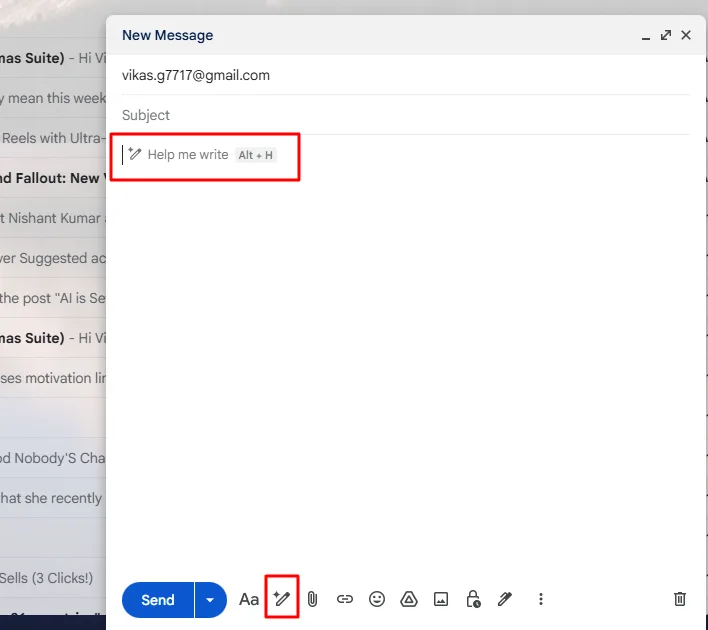
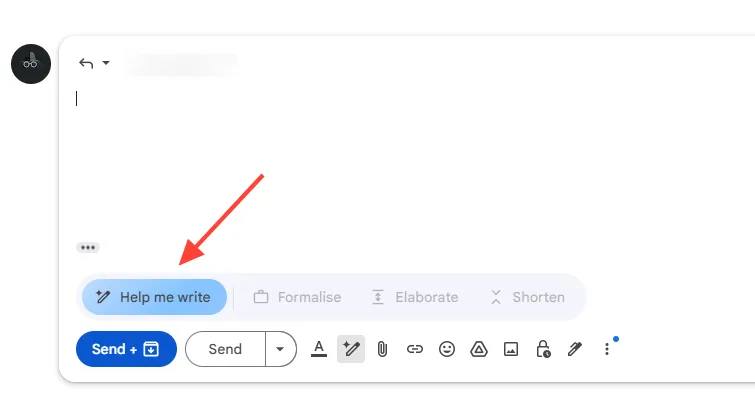
On desktop, the “Help me write” option appears as a pencil icon with a sparkle at the bottom of the email compose or reply window. On mobile devices, it shows up as a quick-access shortcut when you open a new, blank email. The feature is designed to help users create emails from scratch or improve drafts they’ve already started.
With “Help me write,” you can:
- Create complete email drafts using short, clear prompts
- Rewrite or polish existing emails to match a specific tone or style
- Adjust wording to better align with your instructions and intent
That said, it’s important to understand the limitations of this tool—something that applies to most AI-powered assistants:
- It cannot read your mind and depends entirely on the clarity of your input
- It does not make judgments or decisions for you
- It should not be used as a substitute for professional legal, medical, or financial advice
Gemini-powered features in Gmail are available through selected Google Workspace and Google AI subscription plans, with availability depending on your region. Importantly, Google states that Workspace content is not used to train Gemini models. Your emails and data remain under your control and are handled in line with Google’s established privacy and security standards.
Getting Better Outputs by Writing Clear Prompts
A prompt is a clear set of instructions you give to Gemini that explains both what you want and how the response should be delivered. The better your prompt, the more accurately the AI can understand your intent and produce useful results.
To create an effective prompt, it helps to include a few key components:
1. Persona
Define the role Gemini should take on while generating the response.
Example: Act as a professional and friendly customer support representative.
2. Task
Clearly state the action you want Gemini to perform.
Example: Write an apology email.
3. Context
Share the background information Gemini needs to fully understand the situation.
Example: Details about the customer, the delay, and the reason for the issue.
4. Format
Explain how you want the final output to be structured.
Example: A short email written in three concise bullet points.
Including these elements is usually enough to produce a strong first draft. From there, you can fine-tune the response with simple follow-up requests such as “Make it more concise” or “Adjust the tone to sound more empathetic.”
This method helps you consistently achieve the right tone for different situations. Whether you’re replying to a sensitive customer concern or drafting a clear internal update, well-structured prompts reduce mental effort and make it easier to switch between tasks—without the usual stress of constant context switching.
Prompts for Managing Customer Complaints and Support Responses
Managing customer complaints can be emotionally demanding for support teams, especially when messages arrive charged with frustration or urgency. In these moments, maintaining empathy, professionalism, and clarity is essential—but not always easy. This is where Gemini can be especially valuable. By helping generate thoughtful, well-balanced responses, Gemini supports you in communicating with care and confidence, even during high-pressure interactions, allowing you to stay composed while addressing customer concerns effectively.
Prompt 1: Deescalate a Delayed Shipment ComplaintPrompt 1: De-escalating a Delayed Shipment Complaint
Customer complaints related to delayed deliveries can escalate quickly—especially when they come from a long-term, high-value customer. Picture an email that immediately raises concern: a loyal client is upset about an order that is now six days overdue and hints at leaving a negative public review if the issue is not resolved promptly.
In this scenario, a VIP customer is someone whose purchasing history, frequency, or overall spend makes their satisfaction especially critical to the business. Their feedback carries more weight, both financially and reputationally. As a result, your response needs to be fast, reassuring, and considerate—while deliberately avoiding any language that could imply legal responsibility or liability.
When using Gmail’s Help me write feature powered by Gemini for this situation, your draft should clearly accomplish the following:
- Acknowledge the frustration without placing blame or admitting fault
- Express genuine empathy and appreciation for the customer’s loyalty
- Provide a brief, factual update on the shipment status without over-explaining
- Offer a goodwill gesture (such as a refund, discount, or priority support) when appropriate
- Reassure the customer that their concern is being handled with urgency
- Maintain a calm, professional tone that helps defuse tension and rebuild trust
A well-crafted response not only resolves the immediate issue but also reinforces the customer’s confidence in your brand. By letting Gemini handle the initial draft, your support team can focus on tone, accuracy, and personalization—turning a potentially damaging interaction into an opportunity to strengthen long-term relationships.
Prompt 2: Upholding Your Refund Policy Gracefully
Some messages require extra care. A customer may reach out feeling disappointed or upset, requesting a refund well outside the boundaries of your stated policy. While their frustration may be understandable, your response still needs to balance empathy with consistency, ensuring company guidelines are respected without escalating the situation or consuming unnecessary time rewriting the same explanation.
In cases like this, Help me write with Gemini can generate a thoughtful first draft that maintains a respectful tone while clearly reinforcing your refund policy. This allows you to respond quickly, professionally, and in a consistent manner across similar requests.
In this scenario, the customer is requesting a refund after the approved refund period has passed. Your response should:
- Acknowledge the customer’s frustration and show understanding of their concern
- Clearly explain the refund policy in simple, neutral language
- State that the refund window has expired without sounding dismissive or rigid
- Avoid defensive or legal language that could escalate the exchange
- Offer an alternative solution where possible (store credit, discount, or future assistance)
- Close on a supportive note, reinforcing your willingness to help within policy limits
By using Gemini to handle the initial wording, support teams can remain calm, consistent, and empathetic—turning a potentially difficult exchange into a respectful and professional interaction without unnecessary emotional strain.
Prompt 3: Cold Outreach Emails That Are Likely to Get Opened
Connecting with a new prospect usually starts with a short email that has to work fast. Within a few lines, it needs to capture attention, feel genuinely relevant, and encourage a response. The most effective outreach messages are specific to the recipient, tied to something meaningful in their business, and free from overused sales language.
When using Help me write to create an initial outreach draft, make sure your prompt includes the following details:
- The prospect’s role, company, and industry, so the message feels targeted
- A recent business signal, such as funding news, company growth, a product launch, or increased hiring
- A clear description of the problem your product solves, explained in plain, non-technical terms
- One simple call to action, like a quick reply or a short introductory call
Providing this information gives Gemini the context it needs to generate an email that feels current, personalized, and more likely to receive a reply.
Prompt to Paste into “Help me write”
You are a B2B sales representative. Write a friendly, concise cold email to a [ROLE] at [COMPANY] in the [INDUSTRY]. Open by referencing [SPECIFIC NEWS OR SIGNAL]. Clearly link that signal to the problem we solve, described in simple language as [PROBLEM]. End with one low-effort call to action, such as a 15-minute call next week or a brief reply to confirm interest. Avoid buzzwords. Keep the email under 100 words and use clear, straightforward language.
Post-Generation Refinements
- If the draft feels too long, ask Gemini to “shorten it while keeping the same structure and call to action.”
- Create multiple versions by changing the opening sentence or call to action and compare which feels most natural.
- Replace any technical or industry-specific wording with everyday language before sending.
By starting with a strong, well-structured prompt and making small refinements, you can produce outreach emails that sound human, relevant, and easy to respond to—without spending unnecessary time rewriting from scratch.
Prompt 4: Casual Follow Up After a Silent Prospect
Following up after sharing a proposal requires a careful balance. When there’s been no reply, the aim isn’t to apply pressure—it’s to gently reconnect while offering something genuinely useful. A good follow-up should feel considerate, respectful of the recipient’s time, and helpful rather than repetitive.
When using Help me write for a proposal follow-up, include the following details in your prompt to ensure the message stays relevant and well-timed:
- The date the proposal was sent and a short summary of what it addressed
- A helpful resource, such as a case study, short explainer video, or one-page overview that supports decision-making
- Any timing context the prospect previously mentioned, like an upcoming renewal, internal review, or important deadline
Providing this information allows Gemini to draft a message that adds value instead of simply asking for an update.
Prompt to Paste into “Help me write”
You are a sales representative. Write a polite, low-pressure follow-up email to a proposal I sent on [DATE] with the subject line “[SUBJECT]”. Briefly reference the earlier message in one sentence. Share this helpful resource—[LINK OR TITLE]—to support their evaluation, without sounding promotional. Ask a simple question to check whether priorities or timing have changed. Clearly include an easy way for them to say no if this isn’t a fit right now. Keep the email scannable and under 120 words.
Post-Generation Refinements
- Confirm the email includes a clear, respectful opt-out, making it easy for the recipient to say “not right now.”
- For executive-level contacts, ask Gemini to slightly increase the level of formality.
- Add one short line that reinforces the primary outcome or benefit, rather than listing product features.
With the right prompt and small refinements, proposal follow-ups can feel supportive and professional—helping keep conversations moving without creating pressure or discomfort.
Prompt 5: Summarizing Demo Next StepsAfter a product demo or detailed discovery call, it’s common for participants to walk away with slightly different understandings of what was discussed. A short, clearly organized follow-up email helps align everyone, reinforces key decisions, and ensures next steps are understood—reducing the risk of confusion later and keeping momentum strong.
When using Help me write to create a post-call summary, prepare the following details ahead of time:
- The main goals and challenges the prospect highlighted during the conversation
- The parts of your solution that resonated most, such as specific features or use cases
- Decisions that were made, including owners and expected timelines
- Planned next actions, such as pilots, trials, or upcoming meetings
Providing this context allows Gemini to generate a recap that is accurate, actionable, and easy for all stakeholders to follow.
Prompt to Paste into “Help me write”
You are an account executive. Turn the notes below into a follow-up email that opens with a brief thank-you. Organize the message into three sections: What We Heard, What We Proposed, and Agreed Next Steps. In the Agreed Next Steps section, clearly list owners and target dates. Keep the tone friendly and confident. Add a short TL;DR at the top for busy readers. [PASTE BULLET NOTES]
Post-Generation Refinements
- If the email feels dense, ask Gemini to simplify and tighten each section while keeping all names, owners, and dates intact.
- Double-check names, numbers, and timelines against your original notes before sending.
- Keep the TL;DR short and scannable, so recipients can quickly understand the plan—even when reading on a mobile device.
A well-written follow-up recap reinforces trust, reduces friction, and helps move the conversation forward with clarity and shared understanding.
Prompts for Clearer Internal Memos and Team Updates
Internal emails often land at the worst possible moment—when your focus is already split between customer requests, sales follow-ups, and urgent tasks. Even so, status updates, project summaries, and process changes still need to be communicated clearly to keep everyone aligned. Because they aren’t always time-critical, these messages are easy to postpone, which can lead to confusion or misalignment across teams.
With Gemini’s “Help me write” feature in Gmail, scattered thoughts and rough notes can be quickly turned into clear, well-organized internal updates. Instead of spending extra time structuring your message, you can rely on Gemini to create a concise draft that’s easy to read, easy to send, and easy for your team to understand—helping information move smoothly without adding to your mental load.
Prompt 6: Project Status and Updates Summaries
Project leads often juggle information spread across meeting notes, chat threads, and informal updates rather than maintaining a single, clear summary. Meanwhile, stakeholders—anyone affected by or invested in the project—need a quick, reliable snapshot of progress without digging through long email chains or message histories.
Using “Help me write” for project status updates allows you to turn fragmented inputs into a concise, well-organized update that keeps everyone aligned and informed.
When preparing a prompt for this type of update, make sure to include:
- What’s finished, what’s underway, and what’s coming next
- Important dates and milestones, such as launches, reviews, or approval checkpoints
- The intended audience, whether executives, managers, or the core delivery team
- A TL;DR, a short summary at the top for readers who only have time for a quick overview
Providing this context helps Gemini generate a status update that is easy to scan, easy to understand, and relevant to the right audience.
Prompt to Paste into “Help me write”
You are a project lead. Write a clear project status update email with a two-sentence TL;DR at the top. Structure the rest of the message under the headings Progress, Blockers, and Next Steps. Clearly highlight any decisions needed, risks, and key dates. Keep bullets short and scannable. Adjust the level of detail for [AUDIENCE TYPE].
Post-Generation Refinements
- For executive readers, ask Gemini to condense the message so it fits on a single screen.
- Use the same format consistently for weekly or recurring updates so stakeholders know exactly where to look.
- Highlight decisions in a dedicated bullet to ensure they stand out and receive timely attention.
A consistent, well-structured status update reduces confusion, saves time, and keeps projects moving forward with shared clarity and accountability.
Prompt 7: Sincere Process Change Announcement
Process changes—such as updated approval flows, new tools, or revised procedures—directly affect how people do their work. When these updates are shared without enough explanation, they can easily lead to confusion, hesitation, or resistance. That’s why clarity and transparency matter. Human Resources and internal communications teams can use Gemini to craft messages that explain not only what is changing, but why—helping employees feel informed, respected, and supported.
When using Help me write to communicate a process change, make sure your prompt includes the following information:
- What is changing and what is not, so expectations are clear
- The reason behind the change, such as compliance needs, cost considerations, or efficiency goals
- Support resources available, including training, documentation, or help desks
- The intended tone, for example clear, direct, and supportive
Providing this context allows Gemini to produce a message that reduces uncertainty and encourages understanding rather than pushback.
Prompt to Paste into “Help me write”
You are an HR and internal communications partner. Write a clear, respectful announcement explaining a process change. Organize the message into these sections: Why We Are Making This Change, What Is Changing and When, What Stays the Same, and How to Get Help or Share Feedback. Acknowledge that change can be challenging and thank the team for their flexibility. Keep the tone human, direct, and supportive.
Post-Generation Refinements
- Use a more formal tone when communicating changes to the entire organization.
- Read the message aloud to spot any phrasing that could be misunderstood or feel impersonal.
- Adjust the language to ensure it reflects your leadership’s voice and values, rather than sounding like a generic announcement.
Thoughtful process-change communication builds trust, minimizes disruption, and helps teams adapt with confidence—especially when clarity and empathy lead the message.

Use Gmail’s Refinement Tools to Edit Gemini’s Initial Drafts
The drafts Gemini produces should be viewed as a solid starting point—not a finished product. Gmail’s built-in editing options make it easy to refine that first version until it fits your exact needs:
- Formalize – Shifts the tone to sound more polished and professional
- Elaborate – Adds detail and expands on key ideas
- Shorten – Trims the message down for clarity and speed
- Polish – Improves wording, flow, and overall readability
- Recreate – Generates a fresh draft using your original prompt
Each option is useful in different situations. For example, Shorten works well for sales outreach that needs to be quick and direct, while Elaborate is better suited for internal updates that require added context. Try different refinements until the tone, length, and level of detail match your intent.
Review and Refine Before Sending
Although Gemini is a powerful writing assistant, the responsibility for what you send still belongs to you. Before hitting “Send” on any AI-assisted email, take a moment to review it carefully:
- Fact-check – Confirm names, dates, pricing, commitments, and policy references are accurate
- Alignment – Make sure suggested actions follow internal rules and company guidelines
- Tone – Check that the language reflects your brand voice and communication standards
- Expert review – For sensitive or complex topics, have the message reviewed by the appropriate stakeholder
A thoughtful review step ensures your communication remains accurate, professional, and aligned—while still benefiting from the speed and efficiency Gemini provides.
Put These Gemini Prompts to Work
Gmail’s “Help me write” feature is built to take care of the most time-consuming part of email communication: creating the first draft. By letting Gemini handle that initial workload, you can direct your attention toward higher-impact tasks instead of constantly switching contexts throughout the day. With just a small collection of well-designed prompts, it’s possible to reclaim hours each week while reducing mental fatigue.
To begin, concentrate on mastering one prompt at a time. For instance, use Prompt 1 when handling sensitive customer support issues, Prompt 3 for reaching out to new sales prospects, or Prompt 6 for recurring project status updates. After generating a draft, review it carefully, adjust the prompt if needed, and personalize the message until it sounds natural and aligned with your voice. Once refined, save the prompt so it’s ready whenever you need it again.
Gemini’s “Help me write” is more than a convenience—it’s a practical AI assistant that brings clarity, consistency, and efficiency to everyday communication. By using it thoughtfully, you can spend less time managing your inbox and more time on work that truly matters. Start using it today and let email support your productivity, rather than slow it down.